Add the snippet to your website
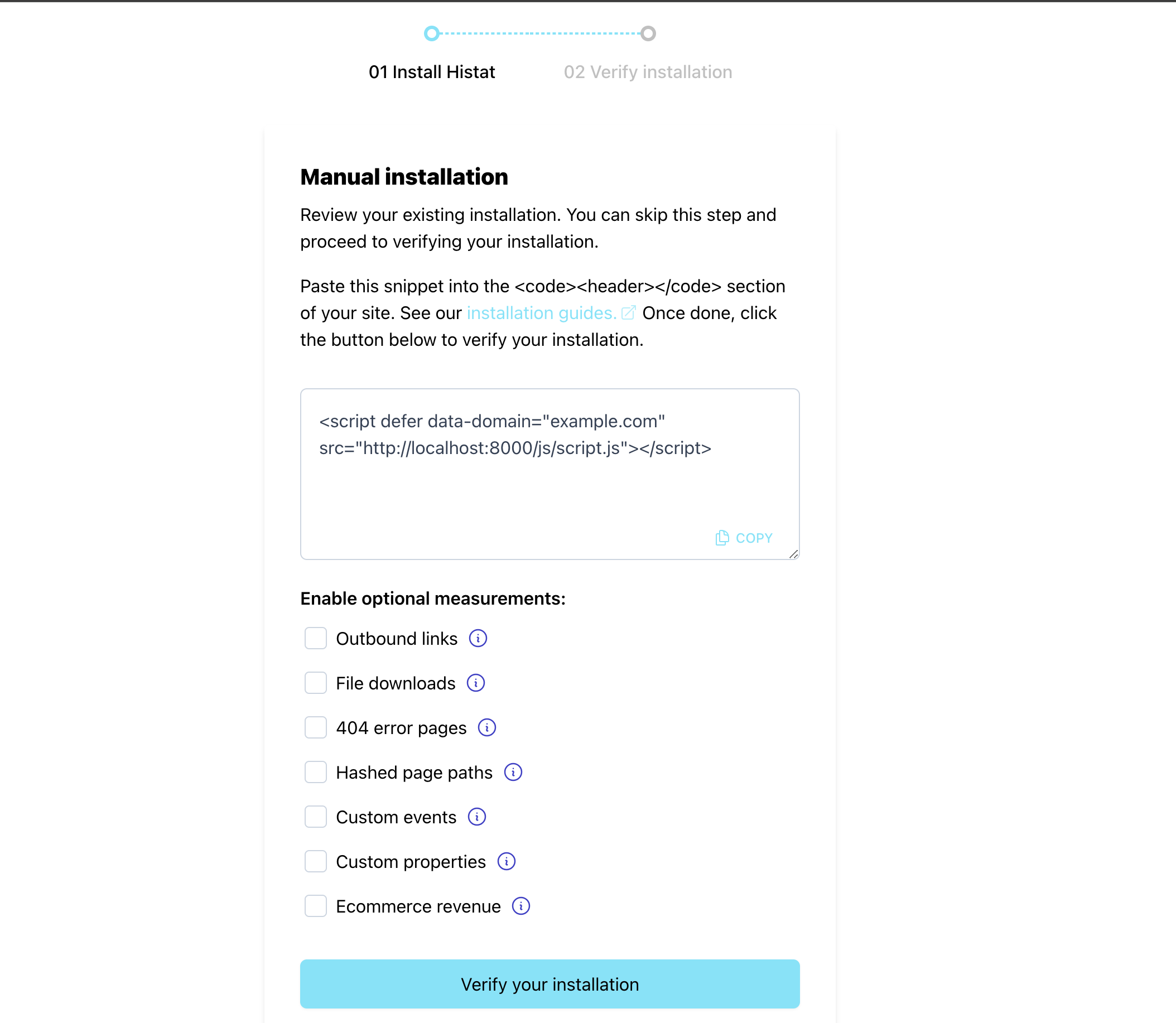
To integrate your website with Histat Analytics, you need to insert a Histat tracking snippet into the header section of your site. Place the snippet within the <head> … </head> tags.
We display your snippet during the process of adding a new site to your account. For sites that you've already added to your account, you can find your JavaScript snippet by logging into your Histat account. Here you'll find the list of websites you've added to Histat.
Click on the menu icon on the right-hand side of the site you'd like to get the snippet for and choose "Settings" to enter the site settings. Then scroll down to the "Site Installation" area of the "General" section. Click on the "Review Installation" button to get the installation details including your snippet.
There you can also enable any optional enhanced measurements. Note that the snippet changes depending on your selection of optional measurements. When making changes to your optional measurements, do ensure to insert the newest snippet into your site for all tracking to work as expected.
You can add your main domain name as a site to your Histat account and use that same tracking snippet on all your subdomains too. This keeps the visitor session active between your main site and its subdomains.
Can I send stats to multiple dashboards at the same time?
Yes, you can send your visitor stats to multiple Histat dashboards at the same time. To do this, you need to configure the data-domain attribute as a comma-separated list in the Histat snippet. Here's an example:
<script defer data-domain="domain1.com,domain2.com,domain3.com" src="https://histat.com/js/script.js"></script>
Is there a roll-up view?
Rollup reporting allows you to aggregate stats from multiple sites and see them in one combined dashboard while keeping the individual site stats on their own separate dashboards. This way you get detailed insights into individual site performance and a holistic view of your whole network too.
This is useful when building multi-tenant applications, offering a white label analytics dashboard or in similar situations. It allows you to keep all your global traffic in one dashboard for internal purposes but also share the traffic from individual tenant sites with the particular client only.
Here's how you can use it:
- Say you have
yoursite.com,yoursecondsite.comandanothersite.comas websites in your Histat account - Then you could add a new site to your Histat account called for example
rollup.mysites.com(you can come up with any name that you want for this, it doesn't need to be an actual domain) - On the
yoursite.comsite, add the new site name to the data-domain attribute in your Histat snippet like this:
<script defer data-domain="yoursite.com,rollup.mysites.com" src="https://histat.com/js/script.js"></script>
- And on
yoursecondsite.comsite, add the new site name to the data-domain attribute in your Histat snippet like this:
<script defer data-domain="yoursecondsite.com,rollup.mysites.com" src="https://histat.com/js/script.js"></script>
- Add the new site name to the data-domain attribute in your Histat snippet on the
anothersite.comsite too. Like this:
<script defer data-domain="anothersite.com,rollup.mysites.com" src="https://histat.com/js/script.js"></script>
How to check if Histat Analytics is installed correctly
After adding the Histat snippet to your website, you can use our testing tool to verify that the snippet is installed correctly and the integration is working.